

 By
By Introduction
Canon Pixma printers are renowned for their reliability and excellent print quality. Despite their reputation, paper jams can occur and disrupt your workflow. This guide will help you understand why paper jams happen, how to address them, and how to prevent future occurrences. Equipped with this knowledge, you’ll enjoy smoother printing experiences.
Understanding Why Your Canon Pixma Gets Jammed
Identifying the reasons behind paper jams is critical for prevention. While Canon Pixma printers handle a variety of paper types, certain user habits contribute to jams. Common culprits include improper paper loading, using incorrect paper sizes, and wear on printer components. Misaligned trays or unsuitable paper thickness can disrupt the feed mechanism. Additionally, dust accumulation can hinder roller functions, causing misfeeds. Recognizing these factors helps in addressing the root causes efficiently.
Immediate Steps to Resolve a Paper Jam
Experiencing a paper jam requires prompt resolution:
- Safely Power Down Your Printer: Turn off the printer and unplug it to avoid any safety hazards.
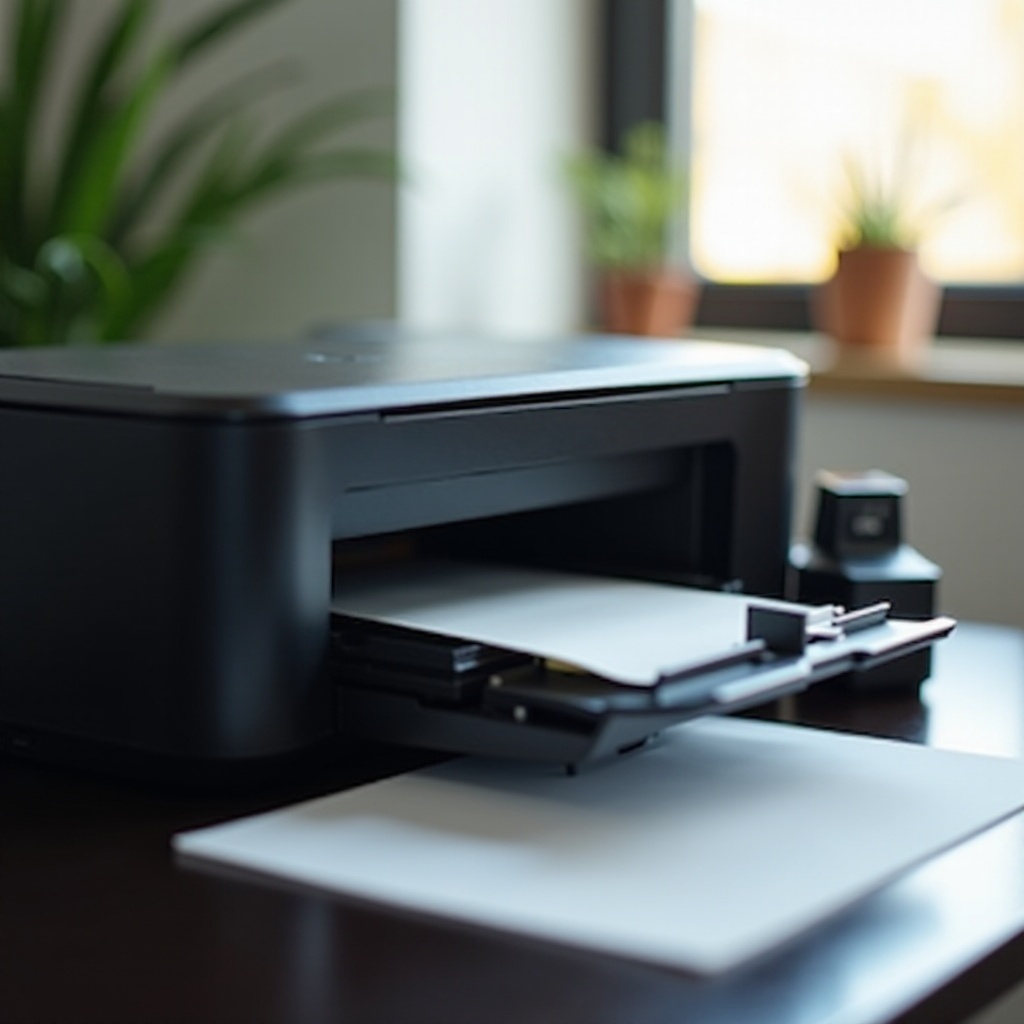
- Accessing the Jam from the Main Tray: Open the paper output cover and remove the tray. Carefully inspect the paper’s path for any lodged scraps.
- Ensuring Complete Removal of Jammed Paper: Gently extract any stuck paper by pulling it straight out to prevent internal damage. Once cleared, reassemble and close the printer.
Understanding these steps will not only help in resolving but also in preventing frequent paper jams.
Common Causes of Paper Jams in Canon Pixma Printers
Delving into common causes can significantly reduce jam occurrences:
- Incorrect Paper Types and Sizes: Ensure compatibility by referring to the printer manual for suitable paper types and sizes.
- Overloaded Paper Tray: Avoid exceeding capacity limits, as overloading can cause misfeeds.
- Printer Roller Issues: Regular maintenance can keep rollers clean and functional, reducing jamming risks.
By addressing these potential issues, your printer’s performance can be optimized, minimizing disruptions.
Expert Tips to Prevent Future Paper Jams
Implementing preventive strategies is key to avoiding jams:
- Optimal Paper Loading Techniques: Align paper using guides to ensure a smooth feed.
- Regular Cleaning and Maintenance Practices: Clean the printer’s interior using a lint-free cloth, focusing on rollers and paths.
- Using Manufacturer-Approved Paper: Stick to recommended paper types to prevent dust-related issues or mismatched feeds.
These practices not only prevent jams but also extend the printer’s lifespan and efficiency.
Canon Pixma Support and Resources for Persistent Issues
When jams persist despite best efforts, reaching out to Canon’s support team can provide solutions. Canon offers comprehensive resources, including user guides and customer service hotlines, to assist in troubleshooting. The combination of expert support and available resources ensures that complex issues receive appropriate attention, maintaining your printer’s functionality and reliability.
Conclusion
Resolving paper jams in Canon Pixma printers is straightforward with a systematic approach. By identifying causes, following resolution steps, and adopting preventive measures, you can enhance your printing experience. Regular maintenance and using the right paper contribute to sustaining your printer’s performance and longevity.
Frequently Asked Questions
What should I do if my Canon Pixma continues to jam frequently?
Ensure you’re using the correct paper type and size, clean the printer regularly, focusing on the rollers, and consult Canon support if issues persist.
Are there specific paper types I should avoid using?
Avoid using paper that’s too thick or designed for other printers. Check the manual for compatible paper recommendations.
How often should I clean my Canon Pixma printer to avoid jams?
Clean your printer’s rollers and paper path every few months or more frequently if you print often to prevent jams.