

 By
By Introduction
Transform your HP Pavilion by upgrading to a solid state hard drive (SSD). This guide dives into the numerous benefits, the selection process, and installation tips for your HP Pavilion. Whether you’re aiming to enhance speed, boost reliability, or improve overall performance, shifting to an SSD is an effective way forward.
Understanding Solid State Hard Drives
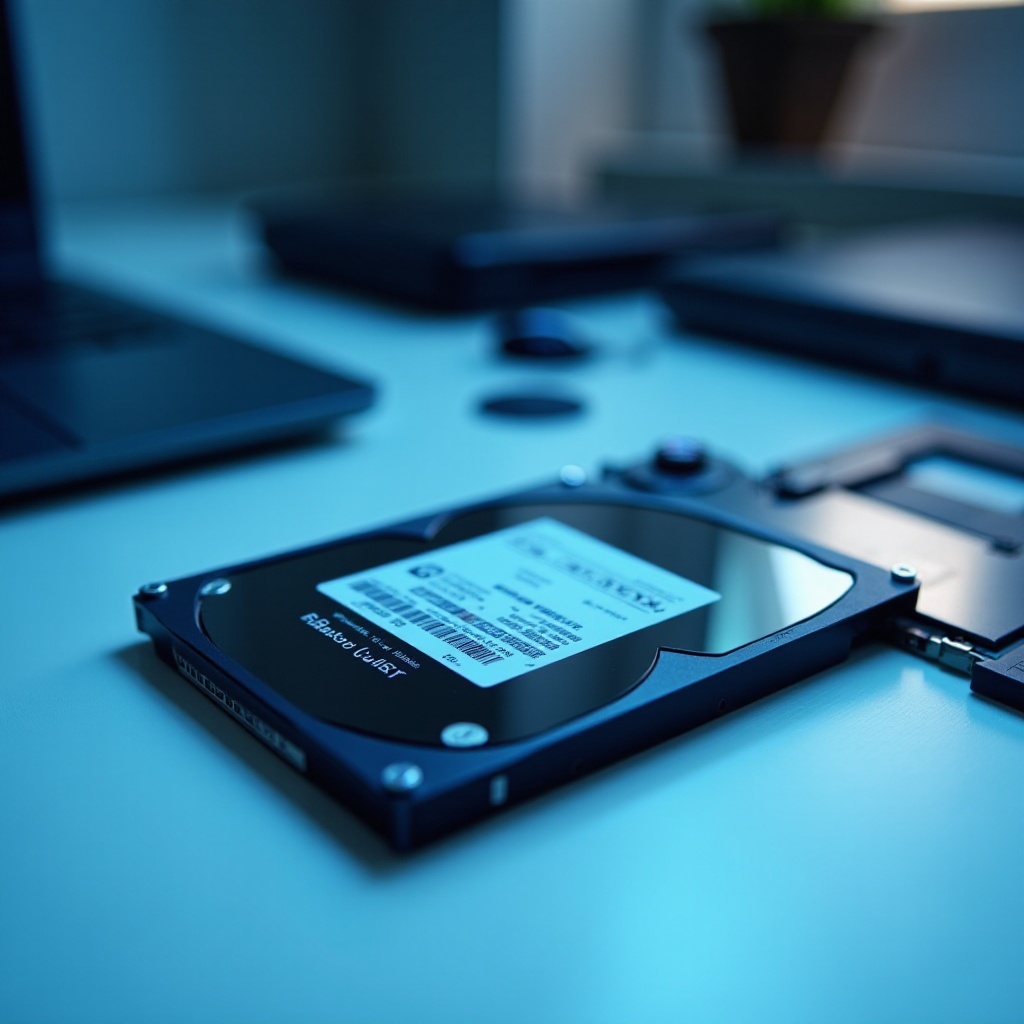
Solid state hard drives, or SSDs, utilize flash memory for data storage, offering significant advantages over traditional hard disk drives (HDDs). Let’s examine these benefits more closely.
What is an SSD?
An SSD is a data storage device that uses integrated circuit assemblies for persistent data storage, primarily with flash memory technology. Unlike HDDs, they possess no moving parts, contributing to their durability and lower susceptibility to mechanical failure.
Advantages of SSDs Over Traditional Drives
- Speed: SSDs drastically reduce boot times and enhance overall system responsiveness due to their faster data read and write capabilities.
- Reliability: The lack of moving parts makes SSDs more resistant to physical damage, ideal for portable devices like laptops.
- Energy Efficiency: SSDs are energy-efficient, potentially extending your laptop’s battery life.
Why Upgrade Your HP Pavilion to a Solid State Hard Drive?
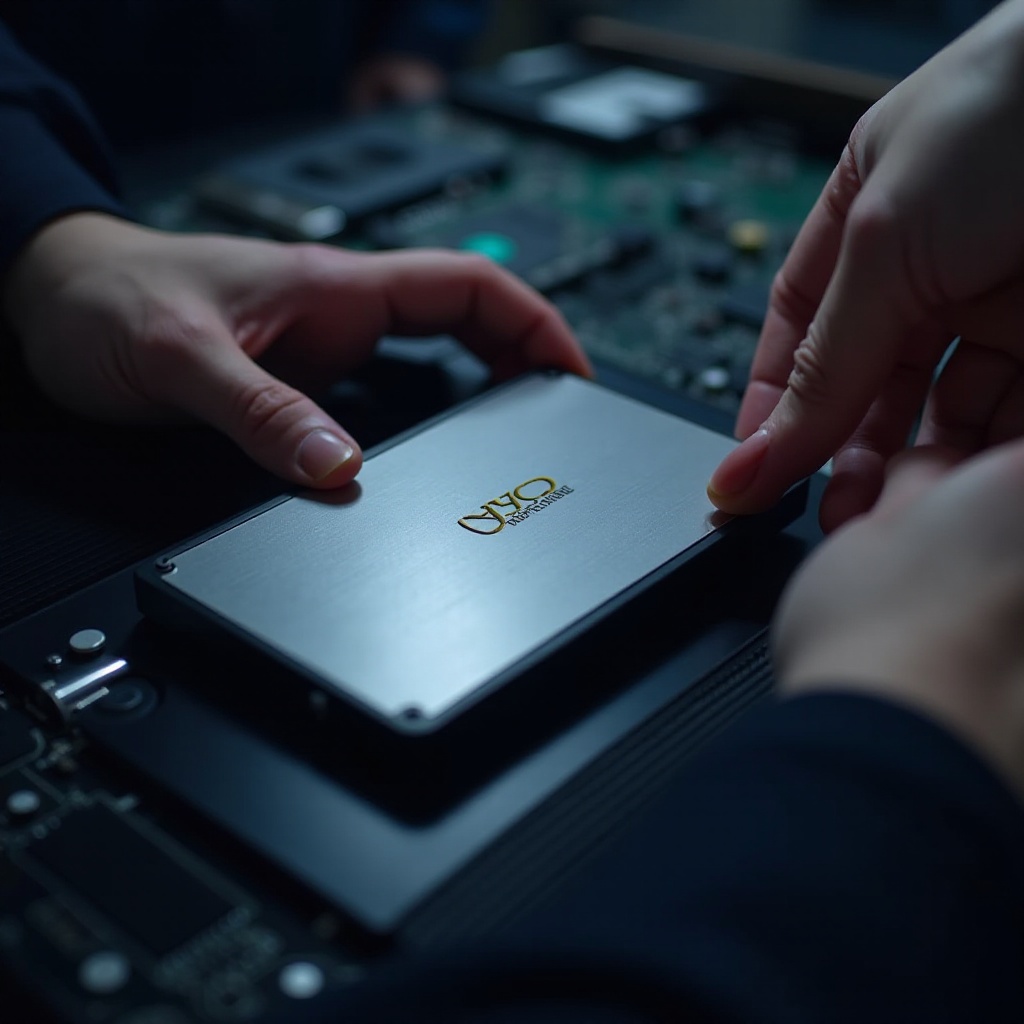
With the benefits of SSDs outlined, let’s explore why HP Pavilion users should consider upgrading. The key reasons highlight enhanced performance, reliability, and even energy efficiency for users on the go.
Improved Speed and Performance
Adopting an SSD can significantly boost your laptop’s speed and performance. Expect faster boot times, quicker file transfers, and enhanced efficiency in daily tasks.
Enhanced Durability and Reliability
SSDs offer remarkable durability, perfect for HP Pavilion users frequently on the move. With an SSD, your data remains secure even if your laptop experiences minor impacts or falls.
Selecting the Right SSD for Your HP Pavilion
Choosing an appropriate SSD is vital for ensuring compatibility and optimal performance. Here’s how you can pick the best drive for your laptop.
Compatibility Considerations
- Form Factor: Check that the SSD form factor (such as 2.5-inch, M.2) fits your HP Pavilion model.
- Interface: Confirm that the interface (like SATA, PCIe) aligns with your laptop’s requirements.
Top SSD Recommendations for HP Pavilion
- Samsung 860 EVO (SATA): Known for its speed and reliability, suitable for many HP models.
- Western Digital Blue (SATA): A budget-friendly option balancing cost and performance.
- Samsung 970 EVO Plus (PCIe NVMe): Delivers high-speed performance for compatible models.
Installation Process for SSD in HP Pavilion
Installing a solid state drive in your HP Pavilion takes some steps, but with careful attention, you can achieve a successful upgrade.
Tools Needed for Installation
- Small Phillips-head screwdriver
- External enclosure or adapter for data transfer
- Cloning software (optional)
Step-by-Step Installation Guide
- Back Up Your Data: Secure your essential files before starting the upgrade.
- Power Off and Unplug Your Laptop: Remove the battery if that’s possible.
- Access the Hard Drive Bay: Use a screwdriver to open your laptop’s access panel.
- Remove the Old Hard Drive: Carefully disconnect and take out the existing drive.
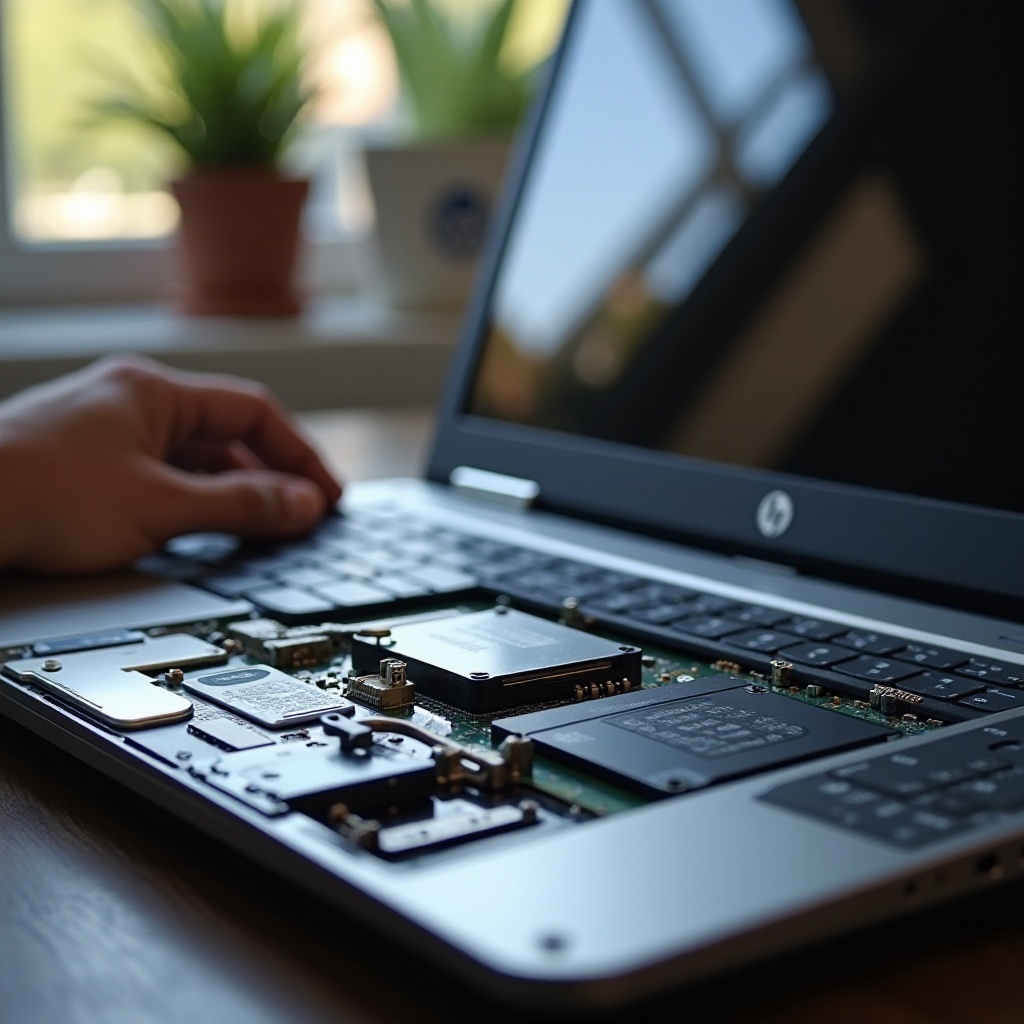
- Install the New SSD: Insert the new SSD and secure it in place.
- Reassemble Your Laptop: Close the access panel and fasten it with screws.
Safety Precautions During Installation
Work in a clean, static-free environment. Handle your SSD with care, protecting it from static discharge.
Post-Installation Tips and Best Practices
Once the SSD is in place, employing proper strategies can ensure peak performance and longevity.
Optimizing SSD Performance
- Enable AHCI mode through your BIOS settings to maximize speed.
- Regularly update the firmware of your SSD to benefit from enhancements.
Regular Maintenance Tips
- Avoid filling the SSD to full capacity to maintain its speed.
- Utilize OS tools to schedule or execute tasks like defragmentation or disk checking.
Common Issues and Troubleshooting
Even with their impressive features, SSDs may encounter issues. Here’s a guide to troubleshoot common problems.
Addressing Installation Problems
If your SSD is not recognized:
– Reinstall the drive to ensure proper connection.
– Check the BIOS settings to verify SSD enablement.
Troubleshooting Performance Issues
- Check your OS settings to ensure SSD optimization.
- Use manufacturer tools to identify and remedy firmware-related problems.
Conclusion
Upgrading your HP Pavilion with a solid state hard drive significantly enhances speed, strengthens reliability, and improves your device’s longevity. Select the right SSD and follow proper installation steps to unlock the full potential of your laptop.
Frequently Asked Questions
How do I know if an SSD is compatible with my HP Pavilion?
Check your laptop’s specifications for the SSD form factor and interface compatibility.
Can I install an SSD without professional help?
Yes, with the right tools and guidelines, you can successfully install an SSD on your own.
How does upgrading to an SSD affect my laptop’s battery life?
SSDs consume less power than HDDs, potentially leading to improved battery life.