

 By
By Introduction
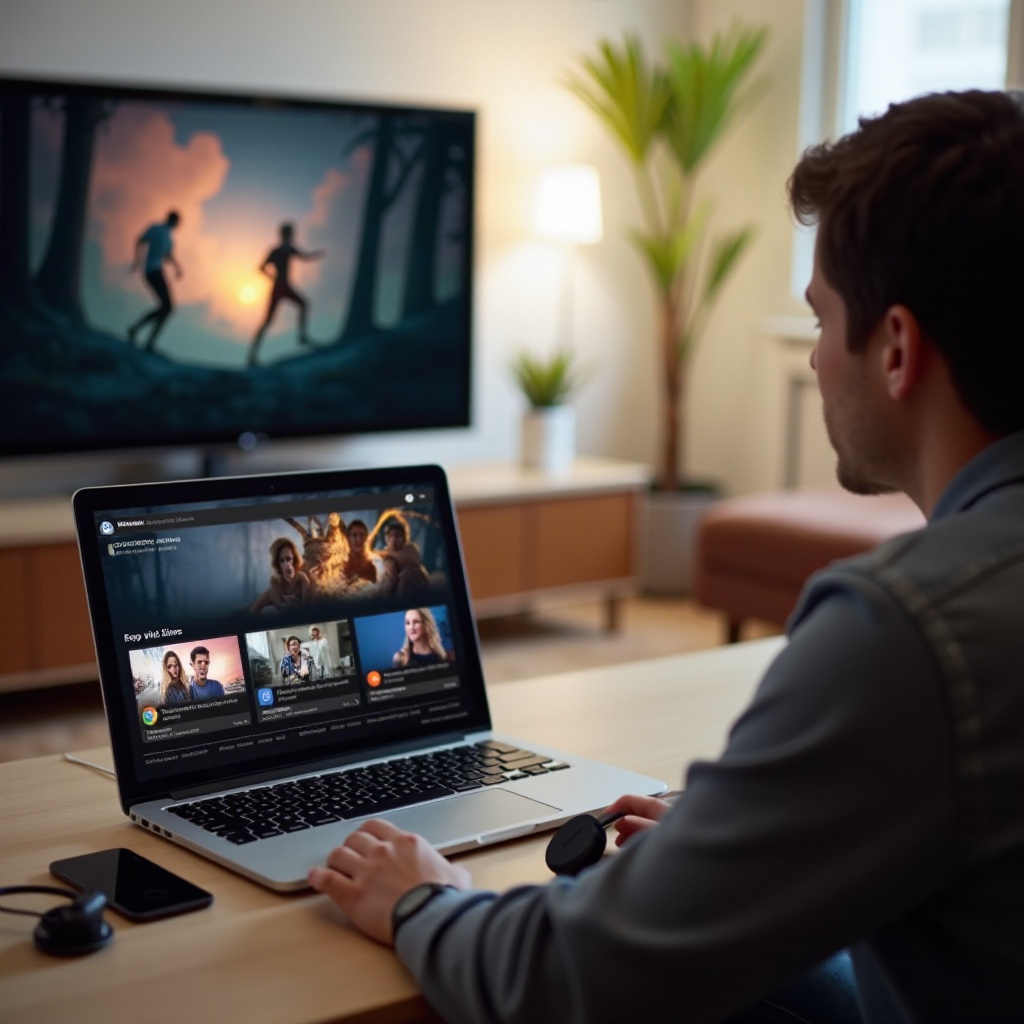
Chromecast and VLC Media Player have changed how we enjoy media at home. Chromecast allows you to stream content from your devices to your TV, making it an essential tool for modern entertainment setups. Paired with VLC, a versatile media player known for its wide format support, it offers a seamless media experience. This guide provides a step-by-step process to set up and use Chromecast with VLC, solve common issues, and enhance your viewing experience.
Understanding the Basics
To begin, let’s explore Chromecast and VLC’s core functionalities and compatibility.
What is Chromecast?
Chromecast, by Google, is a compact, budget-friendly device that plugs into your TV’s HDMI port. It streams videos, music, and more from your phone, tablet, or computer leveraging your home Wi-Fi network to create a streamlined viewing experience.
Introduction to VLC Media Player
VLC Media Player is a free, open-source media player noted for its adaptability. It supports nearly all audio and video formats, making it a globally preferred choice. VLC can play DVDs, audio CDs, and web streams, enhancing its usability.
Compatibility of VLC with Chromecast
When used together, VLC and Chromecast offer a robust media platform. VLC’s capability to stream content makes it ideal for Chromecast. Although VLC supports casting to Chromecast, configuring it for optimal output might require some adjustments. With the basics covered, we’ll proceed to setting up your devices.
Setting Up Chromecast for VLC
Proper setup is key to enjoying hassle-free streaming. This section details everything you’ll need to get started.
Required Hardware and Software
- Chromecast Device: Ensure you have a Chromecast device connected to your TV’s HDMI port.
- VLC Media Player: Download and install the latest VLC version on your computer. It supports casting on both Windows and Mac.
- Wi-Fi Network: Connect your computer and Chromecast to the same Wi-Fi network.
How to Connect Chromecast to Your TV
- Insert Chromecast into your TV’s HDMI port and power it with a USB cable.
- Switch your TV input to the respective HDMI port.
- Download the Google Home app on your mobile device.
- Use the app’s instructions to configure your Chromecast on your home Wi-Fi network.
Configuring VLC Settings
- Launch VLC Media Player on your computer.
- Navigate to ‘Playback’ in the menu.
- Select ‘Renderer’ and choose your Chromecast from the list.
- Ensure VLC is configured to stream audio and video appropriately. Now that setup is complete, it’s time to start streaming.
How to Stream from VLC to Chromecast
With setup done, you can now stream your media collections smoothly from VLC to Chromecast.
Step-by-Step Guide for Windows Users
- Open VLC and load the media you’d like to stream.
- Click ‘Playback’, then ‘Renderer’, and select your Chromecast device.
- Play the media file, and it will appear on your TV.
Step-by-Step Guide for Mac Users
- Launch VLC and access your media file.
- Choose ‘Playback’, then ‘Renderer’, and pick your Chromecast.
- Click play, and your video will be cast to your TV.
Using Advanced Streaming Options
For enhanced control:
– Go to ‘Tools’ and open ‘Preferences’.
– Modify buffer sizes and streaming settings under the ‘Input/Codecs’.
– Customize subtitles and audio tracks to suit your viewing needs. Transitioning to the next section, let’s address any troubleshooting needs.
Troubleshooting Common Issues
While streaming is generally seamless, technical issues can arise. Below are solutions to typical problems.
Resolving Connection Problems
- Verify that both your computer and Chromecast are on the same Wi-Fi network.
- Restart VLC Media Player and Chromecast.
- Check firewall settings to ensure VLC’s network access.
Addressing Audio/Video Sync Issues
- Briefly pause the video and then resume playing.
- Adjust the audio delay within VLC’s ‘Audio’ settings in the ‘Tools’ menu.
Network Connectivity Solutions
- Position your router near Chromecast for stronger signals.
- Consider a Wi-Fi extender if needed. Now let’s explore ways to optimize the streaming experience.
Enhancing the Streaming Experience
For the best experience, optimize your streaming setup by considering these tips.
Optimizing Video and Audio Quality
- Opt for high-resolution video files for superior quality.
- Fine-tune VLC’s output settings for both audio and video in the ‘Preferences’ menu.
Customizing VLC Settings for Better Performance
- Enable GPU acceleration in VLC to reduce CPU load.
- Adjust VLC’s equalizer for refined audio output.
Using Subtitles and Audio Tracks
- Add external subtitle files through VLC’s ‘Subtitle’ menu.
- Choose alternative audio tracks if your file supports multiple languages. Lastly, we’ll consider alternative methods for streaming.
Alternative Methods and Tools
Exploring other streaming options can expand your functionality.
Other Apps for Casting to Chromecast
- Consider apps like Plex or BubbleUPnP as alternative streaming solutions.
- Evaluate usability and quality of each app to determine the best choice for your setup.
Comparing Different Streaming Solutions
- Assess a range of streaming options to identify the most reliable and high-quality solution.
- Account for compatibility, ease of use, and feature availability.
Conclusion
VLC to Chromecast streaming transforms your media enjoyment by bringing it to the big screen. With guidelines provided in this article, you’re equipped to troubleshoot and improve your device setup for an enriched home entertainment experience. Take advantage of technology to redefine how you interact with your media library.
Frequently Asked Questions
How do I ensure the best streaming quality from VLC to Chromecast?
For optimal quality, use high-resolution video files, ensure a stable Wi-Fi connection, and keep your devices updated with the latest software.
Can I cast from VLC to Chromecast without internet?
Casting requires both devices on a local network. You can use a router for an offline local network, though internet connectivity enhances functionality.
What should I do if VLC doesn’t detect my Chromecast?
Restart VLC and Chromecast, ensure they’re on the same network, and check firewall settings to allow VLC local network access.