

 By
By Introduction
Keeping your Chromebook tidy is crucial for ensuring its optimal performance and maintaining its sleek look. Dust, grime, and fingerprints can mar the device’s aesthetic and impair its functionality over time. This guide provides a comprehensive approach to effectively cleaning your Chromebook, equipping you with the knowledge to preserve your device’s longevity and efficiency.
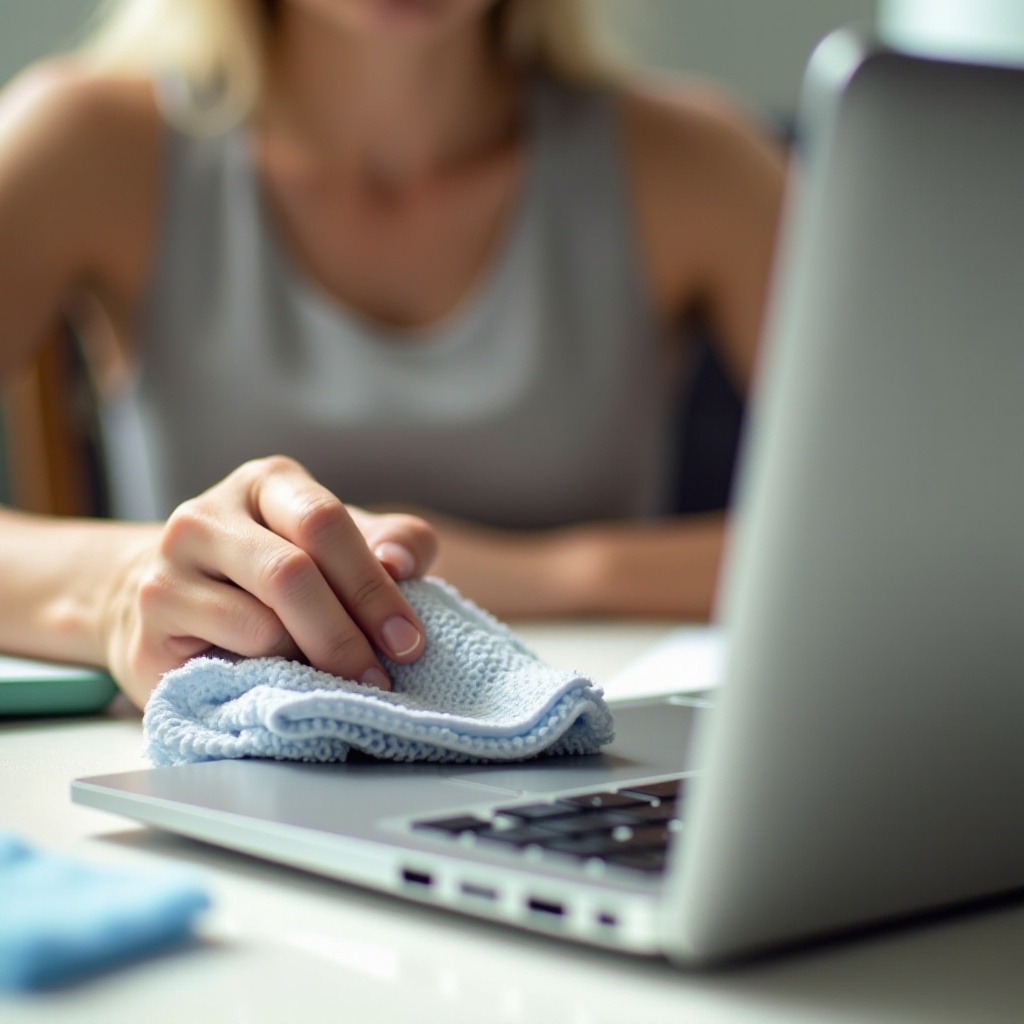
Essential Cleaning Tools and Products
Before embarking on the cleaning process, it’s essential to gather the right materials. Using appropriate cleaning tools will protect your Chromebook from scratches and damage while delivering the best results.
- Microfiber Cloth: Perfect for wiping surfaces without leaving scratches or streaks.
- Compressed Air Can: Ideal for blowing out dust from ports, keyboards, and other nooks.
- Soft Brush: Useful for loosening dirt in hard-to-reach areas without causing damage.
- Isopropyl Alcohol Solution (70% or less): Good for cleaning and disinfecting surfaces safely.
- Cotton Swabs: Excellent for meticulous cleaning around ports and buttons, ensuring grime-free functionality.
These tools will smooth your cleaning process, safeguard against damage, and ensure your Chromebook remains pristine.
Preparing Your Chromebook for Cleaning
Preparation is key when cleaning your Chromebook. Follow these steps to ensure safety and thoroughness:
- Power Down: Always switch off your device to prevent electrical hazards and data loss during cleaning.
- Unplug All Cables: Disconnect chargers, external drives, and any other peripherals.
- Remove External Hardware: Eject USB drives and SD cards to avoid accidental damage during cleaning.
With your Chromebook properly prepared, you’re ready to proceed with cleaning each component meticulously.

Step-by-Step Cleaning Process
Armed with the right tools and a well-prepared device, you can now proceed with the detailed cleaning process to keep your Chromebook in top shape.
Cleaning the Exterior Surfaces
Start with the exterior for a fresh appearance:
- Lid and Base: Use a microfiber cloth slightly dampened with water or an isopropyl alcohol solution to gently clean. Avoid excessive moisture to prevent damage.
- Back and Hinges: Carefully clean these areas with a soft brush, focusing on removing dust and preventing buildup.
Keyboard and Touchpad Cleaning Techniques
Move on to the keyboard and touchpad to maintain their responsiveness and hygiene:
- Keyboard: Use compressed air to blow away crumbs and debris from between the keys. For sticky keys, a lightly dampened microfiber cloth or cotton swab works wonders.
- Touchpad: Clean with a microfiber cloth moistened with isopropyl alcohol to remove oils and fingerprints, ensuring smooth operation.
Cleaning the Screen Safely
The screen is delicate and requires careful cleaning:
- Always apply cleaner to a microfiber cloth rather than directly on the screen to protect from liquid damage.
- Wipe gently in circular motions to remove smudges and cobwebs without creating streaks.
Addressing Ports and Vents
Ensure functionality and airflow by cleaning ports and vents:
- Ports: Use a soft brush or compressed air to remove dust. Be gentle to avoid damaging connections.
- Vents: Keep them clear of dust using a quick spray of compressed air, which helps maintain optimal cooling.
After thoroughly cleaning each hardware component, integrate regular maintenance into your routine to keep your Chromebook in peak condition.
Additional Maintenance Tips
Incorporate the following tips for ongoing maintenance of your Chromebook, ensuring its longevity and consistent performance.
Regular Maintenance Schedule
Schedule regular cleaning sessions to prevent excessive buildup of dust and grime:
- Monthly: Perform a standard wipe-down of exterior surfaces, keyboard, and touchpad.
- Quarterly: Engage in a comprehensive clean, covering the screen, ports, and vents on top of monthly maintenance.
Preventive Measures to Reduce Dust and Dirt Accumulation
Implement these strategies to minimize cleaning needs:
- Use a Protective Case: A case guards against dust and physical damage.
- Avoid Eating Near the Device: This reduces the risk of crumbs and liquid spills affecting your keyboard.
- Proper Storage: Place your Chromebook in a dust-free area when not in use to avoid accumulation.
With these practices in place, your Chromebook remains in excellent shape, ensuring sustained performance and cleanliness.
Conclusion
Cleaning your Chromebook requires only a little effort but yields significant benefits in terms of aesthetics and performance. Following this guide will help extend the life of your device, maintaining its efficiency and appearance. A clean Chromebook is not only more pleasant to use but also operates more effectively, responding better and running cooler. Regular maintenance may seem like a small task, but it plays a crucial part in safeguarding your investment over time.
Frequently Asked Questions
How often should I clean my Chromebook?
Aim to clean your Chromebook monthly for basic upkeep, with a deeper clean every three months.
Can I use household cleaners on my Chromebook?
No, avoid harsh cleaners. Stick to a microfiber cloth with water or isopropyl alcohol for safe cleaning.
What should I do if I spill liquid on my Chromebook?
Immediately power off, unplug, and gently dry visible liquid. Allow it to air dry completely before turning it back on.