

 By
By Introduction
Beats headphones deliver outstanding style and sound quality. However, like any tech gadget, they are not immune to technical hitches that might disrupt your listening pleasure. Whether it’s sound glitches, battery troubles, or connectivity issues, getting to the bottom of these disruptions can restore your audio enjoyment. In this guide, we’ll dive into common problems and practical solutions to ensure your Beats headphones are always in top shape.
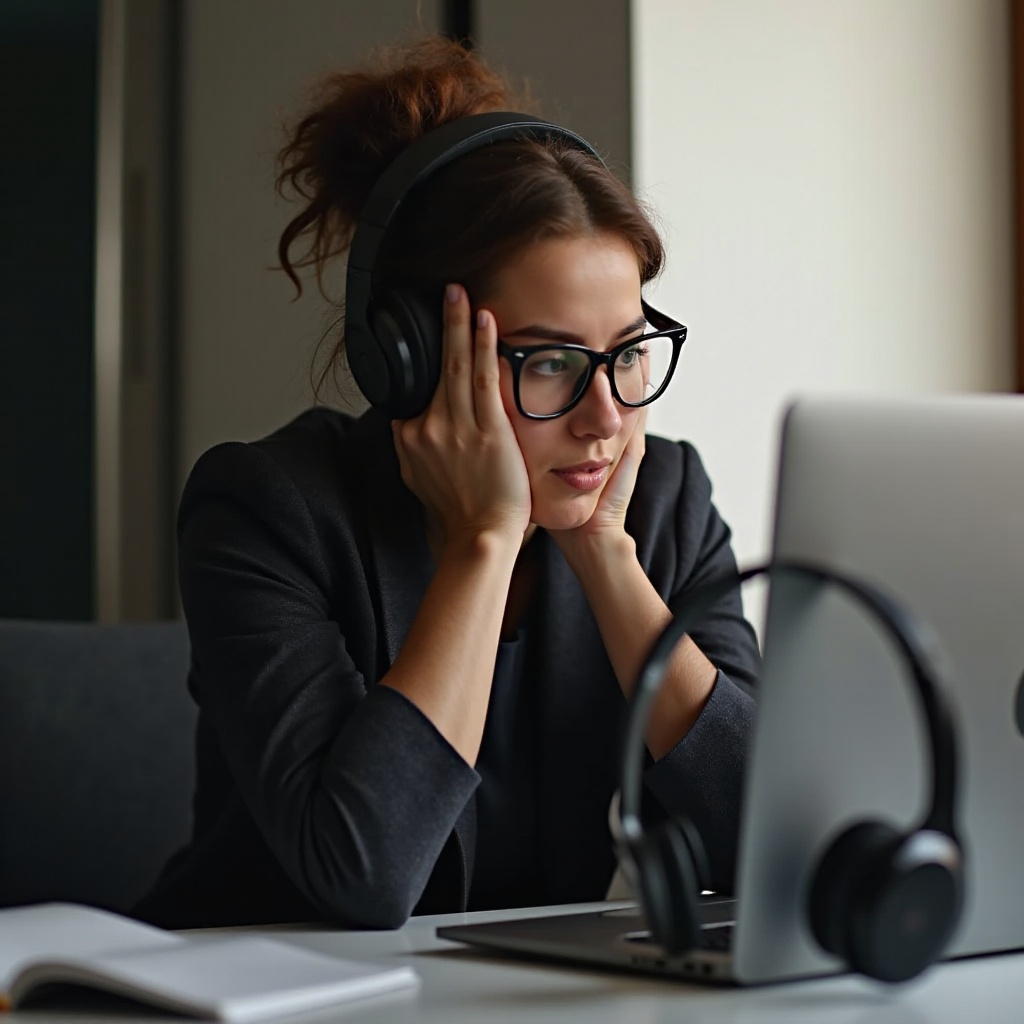
Common Sound Issues with Beats Headphones
One of the more frequent challenges that Beats users face is related to sound quality. Audio dropouts or diminished sound quality can turn a pleasurable listening session into a frustrating experience.
Troubleshooting Low Sound Quality
-
Adjust the Volume: Start by ensuring that your device and headphones have appropriate volume levels; checking this can prevent low audio output.
-
Evaluate Audio Quality: Not all audio files are created equal. Make sure you’re playing high-quality files to experience the best sound.
-
Regular Cleaning: Keep your headphones clean, paying special attention to the jack and ear cushions, as dirt could compromise sound quality.
Fixing Connectivity Problems
-
Restart Devices: Often, a simple restart can fix temporary issues, so try rebooting both your headphones and the connected device.
-
Check Bluetooth Settings: Ensure that Bluetooth on your device is functional and paired correctly. Deleting and re-pairing might solve unresolved problems.
-
Ensure Proximity: Maintain a close distance between your device and headphones, reducing any obstacles that hinder connectivity.
Understanding and resolving these sound issues will clear the path for better overall performance. A critical aspect of ensuring excellence is addressing battery performance, which we will now examine.
Addressing Charging and Battery Problems
Battery issues can undermine the wireless freedom that Beats headphones offer. Ensuring your headphones are always juiced up is crucial for an uninterrupted experience.
Battery Draining Too Quickly
-
Switch Off When Idle: Make it a habit to turn off your headphones when not in use, conserving their battery power.
-
Disable Unnecessary Features: If you’re not using features like noise cancellation, turn them off as they can deplete your battery faster.
-
Stay Updated: Keep any apps that manage battery life updated, as errors in outdated versions can cause unwarranted drain.
Solutions for Headphones Not Charging
-
Inspect Charging Equipment: Verify that your charging cable isn’t damaged. Substituting it with another can pinpoint whether it’s the source of the problem.
-
Use Compatible Chargers: Stick to the original charger or a certified alternative to ensure compatibility and reliable charging.
Resolving battery issues sets the stage for ensuring longevity and device resilience. These efforts are augmented by keen attention to preventing physical damage, which we’ll cover next.
Resolving Physical Damage and Wear
Damage to the physical aspects of your headphones can affect both appearance and functionality. Consistent care plays a pivotal role in mitigating such damage.
Dealing with Cracked Headbands
-
Employ Adhesive Solutions: Quick fixes like strong adhesives can address minor cracks effectively.
-
Protective Measures: Consider using headband covers to protect against further wear and tear.
Replacing Worn-Out Ear Cushions
-
Choose Proper Replacements: Ensure that replacement cushions match your model for a snug fit.
-
Correct Installation: Follow instructions carefully to secure replacements correctly, ensuring both comfort and longevity.
Physical repairs and precautions play into the broader scheme of keeping everything running smoothly. Next, let’s look at how software and connectivity maintenance complement these efforts.
Software and Connectivity Troubleshooting Tips
Regular software updates and maintaining a strong connection are essential for the day-to-day functionality of Beats headphones.
How to Perform a Firmware Update
-
Check Updates Regularly: Stay informed of available updates for enhanced performance and troubleshooting.
-
Utilize Official Apps: Employ official Beats or associated apps for seamless update installations.
Fixing Bluetooth Pairing Issues
-
Refresh Bluetooth Settings: It may help to remove and reconnect devices if connectivity issues continue.
-
Minimize Interferences: Keeping other devices clear of the immediate area can stabilize the Bluetooth connection.
Having stable connections and updated software is indispensable. It complements a rigorous maintenance routine essential for the extended use of your headphones.
Advanced Tips for Beats Headphones Maintenance
Effective maintenance improves performance and extends the operational life of your headphones, giving you more for your money.
Cleaning and Storage
-
Adopt a Gentle Touch: Wipe down surfaces with a soft, dry cloth to prevent harmful buildup.
-
Avoid Moisture: Keep headphones dry, as excess moisture can lead to internal damage.
Regular Software Updates
-
Keep Systems Up-to-Date: Systematic updates can thwart numerous potential issues.
-
Observe Post-Update Performance: After updates, monitor any changes for continued efficient operation.
Conclusion
Beats headphones are a substantial investment in audio excellence. As with all devices, maintenance is key to unlocking longevity and optimal performance. By actively resolving common issues and adhering to the upkeep tips provided, you can greatly enhance your listening experience. Should problems persist, always consult the customer support team for further assistance.
Frequently Asked Questions
How do I reset my Beats headphones?
To reset your Beats headphones, hold the power button and the volume down button simultaneously for about 10 seconds until the LED indicator flashes.
Why won’t my Beats headphones connect to my device?
Ensure that your Bluetooth is enabled and in range. If issues persist, try restarting both your device and headphones.
What should I do if my Beats headphones are not charging?
Check if the charging cable and port are clean and undamaged. Use the original charger or a compatible alternative, and try a different outlet.